

Section 01
The Full Build: One Photo to a Finished Ad
→ Try Flova and get 100 free credits instantly: https://www.flova.ai/
In the video you saw one ordinary phone photo of a tumbler become a finished UGC style ad with a talking talent, voice over, music, and a final timeline, all inside one Flova chat. This page gives you every full prompt from that build. In the video I speak the short version of each prompt. Here you get the complete versions, written to copy and paste as they are.
What you need
- A Flova account. The link at the top gives you 100 free credits to start.
- One photo of your product. Phone quality is fine. Ordinary is the point.
- About 30 to 45 minutes for your first run.
- A full build like this one costs roughly 250 to 400 credits depending on how many fixes you make.
Three rules before you start
- Everything happens in ONE project and ONE chat. Never open a new chat mid build. The Agent remembers your product, your talent, and your scene only inside that session.
- The Agent writes its plan fresh every time. Your storyboard will not match mine word for word. That is normal. You direct it from wherever it starts.
- Results vary between takes even with the same prompt. Judge the control you have, not the exact frames you get.
Step 1: One Photo, One Sentence, One Skill
Create a new project, upload your product photo, and paste this master prompt. Swap the product word for yours:

Make a 15 second UGC style ad for this tumbler. Handheld feel, warm morning light, a person reacting to the product. 9:16 vertical. Include a short casual voiceover in first person, 2 lines maximum, warm natural female voice matching the talent. The final line is spoken to camera with her lips synced to it. Use Seedance 2.0 for the video shots and GPT Image 2 for the images.
Before you hit generate, two clicks that matter:
- Open Skills and select the commercial ad skill. It carries the whole ad structure so you do not have to prompt like an expert.
- Open Models and select Seedance 2.0 for video and GPT Image 2 for images. This is the strongest pairing for commercial work with live action motion and clean image detail.
Hit generate. The Agent posts its full pipeline plan: spec, storyboard, elements, shots, audio, final assembly. It works through the list and checks in with you at every stage.
Why the voice over line is inside the master prompt: if you do not ask for narration up front, the pipeline plans music only and you have to add the voice later. Asking in the first message makes the Agent plan the voice, the lines, and the lip sync shot from the start.
The Agent Checks In
After each phase the Agent pauses and shows you option cards: proceed, adjust, or type something else. Nothing generates past a checkpoint without your confirmation. When the storyboard card appears and you are happy, select the proceed option and send. If you want changes, do not select anything, just type what you want in the chat. That is the entire interaction model of the tool.
Step 2: Direct the Storyboard

The storyboard arrives as a readable document: shot list, framing, talent description, scene, and the voice over lines. Directing it works two ways.
- Hands on: click directly into any storyboard line or element and edit the text yourself. You can also drag and drop your own reference images straight onto a shot.
- By chat: type the change in plain words and the Agent syncs everything connected to it.
This is the exact chat line from the video that flipped the whole ad from morning to night:
Forget morning. Make the whole ad late night. Cozy bedroom, soft warm lamp light. Sync the scene, the lighting, and the audio mood to match.
One sentence changed the scene, the light, and the music direction together. That sync is the difference between prompting and directing.
Step 3: Lock the Elements
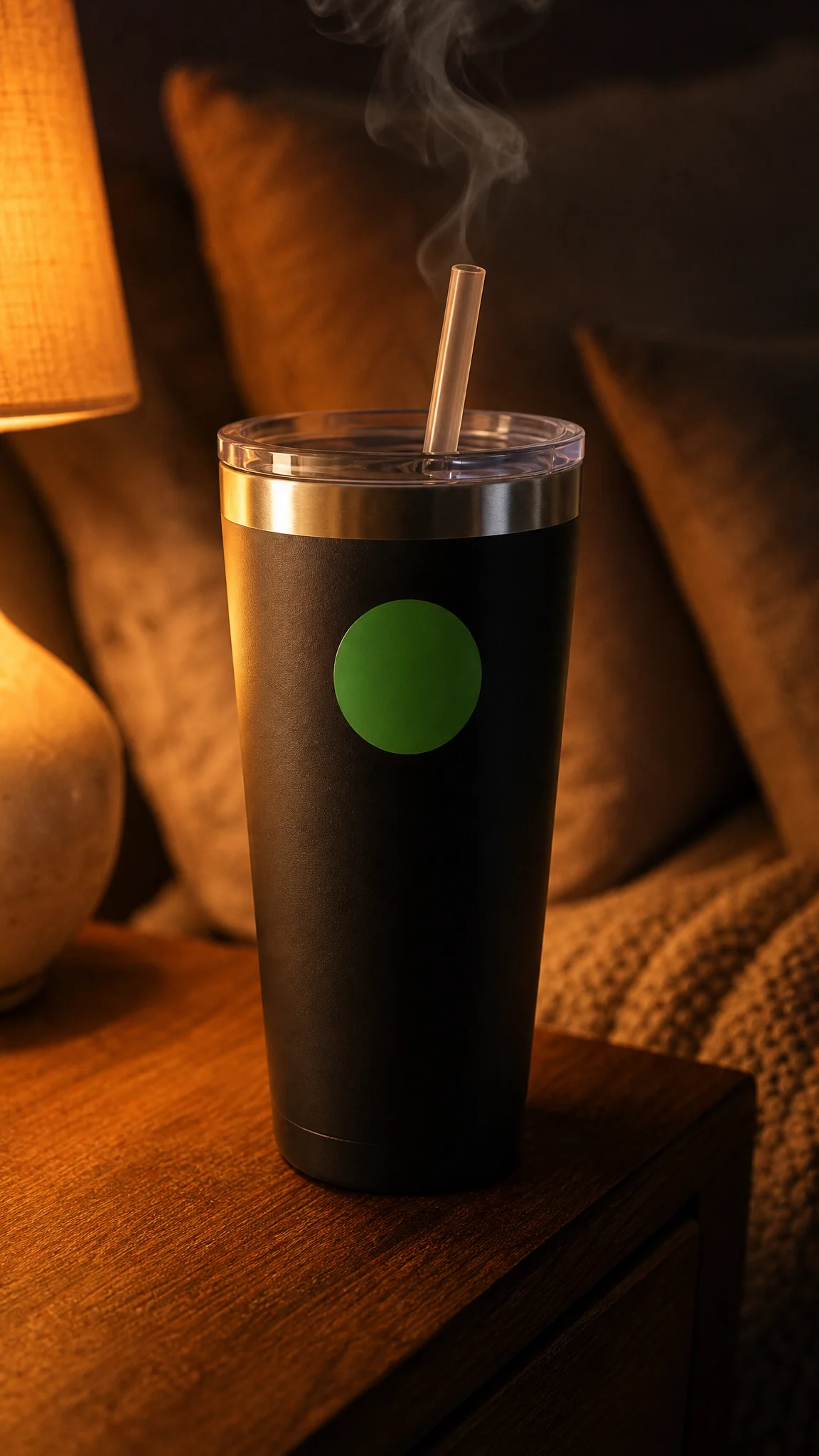


Before any video exists, the Agent generates the Elements: your product, your talent, your room, each as its own card with GPT Image 2. These locked cards are what keep the same face and the same product in every shot from every angle.
If one element is off, fix only that one. The rest stay locked:
Only regenerate the talent. Mid twenties, natural look, plain grey hoodie. Keep the product and the room exactly as they are.
The product card also has an upscale option. Use it before the shots generate if your product render needs more detail. When the cards look right, tell the Agent to continue:
Elements approved. Create the shots with voiceovers.
Step 4: Shots, and the Fix
Seedance 2.0 renders each storyboard beat as its own clip. Same talent, same product, same room. Play every shot before approving anything.
In my build, the third shot came back with two problems at once: the talent held a random glass instead of my tumbler, and her spoken line got cut off before it finished. Both fixed with one message:
Regenerate Shot_Cheers_To_Camera only. Keep every other shot unchanged. Two fixes. First, she must hold the exact product from Element_Tumbler, the matte black tumbler, clearly recognizable in her hand, label side toward camera. No glass, no cup, no other drinkware anywhere in the shot. Second, make this shot longer, around 5 to 6 seconds, so the full voiceover line in Audio_VO_Cheers plays to the end without cutting off. Re-run the lip sync so her mouth matches the complete line from start to finish. Keep the same framing, the same cozy late night lamp light, and the same friendly cheers motion, just slower and more relaxed to fill the longer duration.
Three things this prompt does, and the pattern to steal for any fix:
- It names the shot and locks everything else: this shot only, keep every other shot unchanged.
- It re-anchors the product by its element name so the pipeline binds back to your locked asset instead of inventing a new one.
- It ties the new duration to the audio file instead of guessing a number, so the Agent measures the line and covers it.
Your shot names will differ. Click any shot in the storyboard to see its name, and swap it into the prompt.
Step 5: Sound and Lip Sync
Because the voice over was in the master prompt, the pipeline already wrote the lines, voiced them, and laid a music bed. Your job here is review, not creation. Play the audio layers in the project panel.
For the talking shot, Flova runs OmniHuman 1.5, the model built specifically for lip sync. She is not a clip with a voice over on top. She is saying the line.
If a line needs a change, one message does it:
Rewrite voiceover line 1 to: [your new line]. Keep line 2 as it is. Same voice, and keep the lip sync on the closing shot.
Step 6: Assemble, Timeline, Export

When every shot and the audio are approved, send the assembly message:
All shots are approved. Assemble the final ad now: all shots in storyboard order, the full voiceover on top, and a soft cozy late night lo-fi background music bed running quietly under the voice for the whole video. Voice stays clearly above the music. Then take me to export.
The Agent lines up every shot, the voice, and the music on a timeline, a complete final cut. You can edit directly in the timeline if you want. Then two ways out: export the finished video, or export a Premiere Pro project file and finish it in your own edit suite. My build was final as it was, so I exported the video straight from Flova.
If the music sits too loud under the voice:
Keep everything. Just lower the background music so the voice sits clearly on top.
What you walk away with
- A finished vertical UGC ad with a consistent talent, your exact product, spoken lines with real lip sync, and a music bed.
- A project where every asset stays editable: any shot, any line, any element, fixable with one message.
- The starting point for the multiply move: hook variants, the poster, and your own saved skill, which is the next lesson.
Next Step
Lesson 2 turns this one ad into three testable versions plus a matching product poster, and saves the entire setup as your own reusable skill. That is where this stops being a build and becomes a machine.
Section 02
The Ad Machine: Three Hooks, One Poster, Own Skill
→ Try Flova and get 100 free credits instantly: https://www.flova.ai/
Lesson 1 ended with one finished ad. This page is where it becomes a machine. Same project, same chat, do not open a new session. By the end of this page you have three testable versions of your ad, a matching product poster, and the entire setup saved as a one-click skill for your next product.
Why hooks are the whole game
The hook, the first two seconds, is the only part of an ad that decides if people stop scrolling. Advertisers never run one version. They test hooks the way they test copy, and normally that means reshooting. Here it means one message per variant, because everything else stays locked: the talent, the product, the closing lip sync shot, the music.
Move 1: Brainstorm With the Agent
You do not need hook ideas. That is the point. Ask the Agent to pitch them:
I need more hook options for the opening scene of this ad. Brainstorm five different hook angles, one line each.
Five angles land in the chat. In my build they ranged from a curiosity opener to a problem-first opener to a late night relatability angle. Pick the two that fit your product. If none land, push back once:
Those are too generic. Give me five more, sharper and more specific to a late night wind down moment.
The brainstorm is a conversation, not a slot machine. Treat the first list as a draft.
Move 2: Build the Variants
One message per variant, run one at a time. Paste the hook line you picked into it:
Make variant 2 of the ad. Rebuild only the opening shot using this hook: [paste the hook line]. A new opening voiceover line is fine if the hook needs one. Keep the talent, the product, the closing lip sync shot, and the music exactly the same. Then assemble variant 2 and take me to export.
Export it, then repeat the same message as variant 3 with your second hook. A few minutes later you hold three versions of the same ad. That is an A/B test ready to run: post all three, let the numbers pick the winner, spend your budget on it.
The locked line in the middle is what makes this cheap. Only the opening shot and its voice line regenerate. Everything you already approved stays frozen, so a variant costs a fraction of the original build.
Move 3: The Poster
Still the same chat. One line switches Flova into single image mode, no storyboard, no pipeline:
No storyboard, just create a single image. Use GPT Image 2. A product poster for this tumbler using Element_Tumbler_Product as the exact product, matching the cozy late night vibe of the ad. Clean modern layout, deep warm dark background, the headline text "COZY NIGHTS" in bold clean type, no other text. Flat poster artwork filling the entire frame, not a photo of a poster on a wall. 2:3 vertical.
Swap the element name for yours, click any element card to see it, and change the headline in the quotes to your own line. Keep headlines short, one to three words render cleanest. GPT Image 2 handles text and layout better than anything else in this stack, so the type usually comes back clean on the first try.
Revisions stay conversational:
Keep the design. Make the headline larger and the background slightly darker.
One photo went in. An ad, two variants, and a poster came out. That is a full set of marketing assets from a single upload.
Move 4: Save It as Your Skill
This is the closing move and the most valuable one. Everything you just built, the shot structure, the model choices, the audio rules, the fix patterns, can be saved as your own named skill:
Save this whole setup as a reusable skill called [YOUR SKILL NAME].
The Agent codifies the entire session: the pipeline phases, the three shot formula, which model handles which job, the audio rules. Next product, you upload a photo, select your skill, and the whole pipeline runs with your style baked in. You skip every setup step in Lesson 1.
Every ad you make teaches it. Your tenth ad is faster than your first. That is what separates a tool you use from a machine you own.
The weekly loop, once your skill exists
- Upload a new product photo, select your skill, generate.
- Review at the checkpoints, fix single shots with the Lesson 3 templates.
- Brainstorm five hooks, build two variants.
- One poster in standalone mode.
- Post all three versions, read the numbers, scale the winner.
One product, one sitting, one full ad set. That is the machine.
Next Step
Lesson 3 is the Control Prompt Library: the fix templates for every failure you will meet, wrong product, clipped audio, broken sync, loud music, written as reusable commands you can paste into any build.
Section 03
The Control Prompt Library
→ Try Flova and get 100 free credits instantly: https://www.flova.ai/
Fix Anything With One Message
This page is your reference library. Lessons 1 and 2 taught the build. This one is what you come back to when a generation misbehaves. Every template below follows the same control pattern, and once you see the pattern you can write fixes for problems this page never mentions.
The Control Pattern
Every fix message in Flova has three parts. Name the target. Lock everything else. Describe the fix in plain words.
[Target: this shot only / this element only / this line only]. [Lock: keep everything else exactly unchanged]. [Fix: what you want, described simply].
The lock line is the part beginners skip, and it is the most important. Without it, the Agent may helpfully regenerate things you already approved. With it, a fix costs a fraction of a rebuild and nothing you liked gets touched.
Product fixes
Wrong product in a shot, the model invented a lookalike:
Regenerate [shot name] only. Keep every other shot unchanged. She must hold the exact product from [element name], clearly recognizable in her hand, label side toward camera. No other product, cup, or object of that type anywhere in the shot.
Product detail is soft or mushy in close ups:
Only regenerate the product element. Sharper surface detail, clean edges, true colors matching the uploaded photo. Keep the talent and the room exactly as they are.
Product render needs more resolution before shots generate: use the upscale option on the product element card. Always upscale before shot generation, not after.
Talent fixes
Face or look drifts between shots:
Regenerate [shot name] only. The talent must exactly match the locked talent element, same face, same hair, same outfit. Keep every other shot unchanged.
Wardrobe or styling change across the whole ad:
Only regenerate the talent element. Same person, now wearing [your change]. Keep the product and the room exactly as they are, then update the shots that show her.
Movement looks unnatural, floating, sliding, teleporting:
Regenerate [shot name] only. She must [describe the physical action simply: get out of bed, reach for the product, turn toward camera], natural human movement, natural pacing. Keep every other shot unchanged.
Audio fixes
Voice over line cuts off before it finishes:
Regenerate [shot name] only. Make the shot longer, around [X] seconds, so the full voiceover line in plays to the end without cutting off. Re-run the lip sync so her mouth matches the complete line from start to finish. Keep the same framing and lighting, just slower and more relaxed to fill the duration.
The duration trick: tie the shot length to the audio file by name instead of only guessing a number. The Agent measures the line and covers it.
Rewrite a voice over line without touching anything else:
Rewrite voiceover line [number] to: [your new line]. Keep the other lines as they are. Same voice, and keep the lip sync on the talking shot.
Change the voice character:
Regenerate both voiceover lines with a different voice, [warmer / more energetic / softer], still natural and casual. Keep the wording exactly the same and re-run the lip sync.
Lip sync is off but the take is good, cheapest fix in the library, always try this before regenerating the shot:
Keep this take. Re-run only the lip sync on [shot name] to the full line.
Music fixes
Music too loud under the voice:
Keep everything. Just lower the background music so the voice sits clearly on top.
Wrong mood:
Keep the voiceover exactly as it is. Change the background music to [describe: softer warmer lo-fi / brighter upbeat acoustic], quiet under the voice.
Scene fixes
Change time of day or mood across the whole ad, the sync command from the video:
Forget [current scene]. Make the whole ad [new scene: late night, golden morning, rainy evening]. Sync the scene, the lighting, and the audio mood to match.
One shot does not match the scene mood of the others:
Regenerate [shot name] only. Match the lighting and mood of the other shots exactly, [describe: soft warm lamp light, cozy late night]. Keep every other shot unchanged.
Assembly fixes
Reorder or drop shots at assembly:
Assemble the final ad with the shots in this order: [shot name], [shot name], [shot name]. Leave out [shot name]. Voiceover on top, music soft underneath.
A specific shot runs too long in the cut: trim it directly in the timeline, that is faster than any regeneration.
When to stop prompting
- If the same fix fails twice, change the wording, do not repeat it. Describe the problem differently.
- If a shot fails three takes, rebuild its storyboard line instead: edit the shot description by hand, then regenerate.
- If the timeline is 90 percent right, finish the last 10 percent in the timeline editor or export the Premiere Pro project. Prompting past that point burns credits that editing solves in seconds.
Next Step
That closes the course. If you build something with this workflow, post your ad in the community, wins and failed takes both, the failed ones teach everyone the most. And if you have not yet, grab your Flova credits through the link at the top of this page.