

Section 01
Watch the Build, Then Learn It
You just watched the finished episode. Now here’s exactly how it was built, inside Pippit, start to finish.
Most people never finish an AI story. They get one shot inside some tool that looks incredible, generate the next scene, and the character has a different face. Rerender, rerender, chase one consistent person across five scenes, watch the credits drain. That’s the wall Pippit Story Studio is built to remove. One workspace, one locked cast, one story, from a single sentence to a finished episode.
This page covers how the idea became a script inside Pippit. Pages two through four cover the cast, the consistency, and the render. Page five is your cheat sheet.
Lesson 1: Why Pippit Story Studio
Every AI video tool can give you one good clip. None of them can give you a story. That’s the gap Pippit Story Studio closes.
Pippit Story Studio is the workspace. Seedance 2.0 Mini is the render engine underneath it, generating the actual moving scenes, at roughly two cents a second. Nano Banana Pro is your stills engine, used for character sheets and key backgrounds before anything moves. Three tools, one Pippit pipeline, and the reason it works where prompting alone fails is simple: the character, the location, and the object you lock in Pippit’s Production assets get pulled into every scene by reference, not re-described from scratch each time. Same source, every scene, because Pippit remembers what you locked.
What you’ll learn on this page
- Where each tool sits in the Pippit pipeline and what it’s actually for
- Why one-off prompting can never hold a character consistent, and what does
- The four-stage shape of every Pippit build: idea, outline, script, production
The shape of every Pippit build
You write one paragraph. Pippit Story Studio expands it into a script outline, then a full script, then breaks that script into shootable scenes. You lock your cast and locations once, inside Pippit’s Production assets. Then you render scene by scene with Seedance 2.0 Mini, and the whole episode assembles inside the same Pippit workspace.
Lesson 2: Writing a Seed Brief Pippit Can Actually Build On
Your paragraph is the only thing you write by hand. Everything downstream, characters, scenes, dialogue, dates, comes from how well this paragraph is built. Too vague and Pippit’s AI script writer invents subplots you never wanted. Too rigid and you’ve written the whole script yourself and Pippit has nothing left to do.
The brief that actually works for Pippit’s script writer names five things and stops: who, what they’re looking for, what they find, the emotional turn, and the beat order. Nothing else.
The real brief that went into Pippit
A woman returns to her late father's quiet house to clear it out, weeks
after he is gone. We never see how he died and never say it directly.
She believes he never understood her and that they parted on cold terms.
The house feels still and distant.

In his workshop, which she always thought of as his rigid, private world,
she expects to feel nothing. Then she finds a box, and inside are dozens
of folded paper boats, one for every year she stayed away. Each has a
date written on the hull in his hand. She turns them over, year after
year, until she reaches the last one. The date is only weeks ago. He had
been folding them the whole time she was away, right up to the end. She
understands, too late, that he never stopped waiting for her.

The story moves in five quiet beats: her arrival at the house in cold
morning light, a warm childhood memory of chasing a paper boat down a
rain gutter, finding the box in the workshop, the moment she reads the
last date and goes still, and finally letting the last boat go on a
stream at dusk. Realistic people, natural expressions, emotional and
restrained. No dialogue, only the images. Keep it simple and uncluttered.
Do not show or describe his death. Do not add other subplots.
Rules for a brief Pippit will hold onto
- Name the beat order, don’t describe the shots. "Arrival, memory, discovery, the turn, release" gives Pippit’s script writer structure. Camera angles come later.
- Rule out what you don’t want, explicitly. A brief that only says what you want leaves everything else open for Pippit to invent. Naming the two or three things to avoid is what holds the line.
- State the emotional turn in one sentence. If you can’t compress your turn this far, the story isn’t focused enough for Pippit to run with yet.
Lesson 3: Reading Your Pippit Story Studio Outline
Before Pippit Story Studio writes a single scene, it gives you a Script Outline. Most people skim past this screen straight to the script. That’s a mistake, this page is the cheapest place in the entire Pippit pipeline to catch a problem.
Pippit’s outline shows Total Episodes, Story Type, Target Audience, Synopsis, Key Hook, and Logline, followed by a full Character Bio for every named character: Role Type, Visual Image, Core Tags, Identity Background, Growth Experience, Personality Traits, Role Relationship, and a Growth Arc.
On the real build, Pippit’s outline proposed 5 total episodes from one paragraph, and the Key Hook read "Posthumous Reconciliation + Tear-jerking Reveal + Healing from Regret." That last one was the tell. "Posthumous Reconciliation" is exactly the kind of heavy, stated-death framing the brief needed to avoid, and Pippit surfaced it here, before a single scene existed.
Rules for reading Pippit’s outline
- The Key Hook is the whole story compressed to a phrase. If Pippit’s version reads heavier or lighter than you intended, your brief needs another pass before you generate the full script.
- This is cheaper than fixing a script. Catching drift at Pippit’s outline stage costs a re-read. Catching it after the script generates costs a rewrite.
Lesson 4: Directing Pippit When It Drifts
When you hand Pippit’s AI script writer a one-paragraph idea, it fills in everything you didn’t specify, tone, subplots, even how loss gets handled on screen. Here’s a real generated script getting corrected inside Pippit, line by line.
The real correction, inside Pippit
Pippit’s first draft included this line:
Her gaze falls on a water stain on the floor near the door.
That reads as the aftermath of something happening exactly there. Corrected, back in Pippit:
Her gaze falls on an old, weathered photograph on the mantel.
Pippit’s first draft also had this:
Her hands start to tremble as she frantically digs through them.
"Frantically" and "digs through" push into panic. Corrected in Pippit to a slower, aching discovery:
Her hands tremble as she turns through them, one by one.
And the closing beat Pippit originally wrote:
Carefully, as if performing a sacred rite, she leans down and sets the
small boat on the surface of the water... She is free.
"Sacred rite" risks pulling toward religious imagery, and ceremonial language like this can trip some platforms’ audio filters on generation. Corrected:
Carefully, she leans down and sets the small boat on the surface of the
water... She is at peace.
Rules for correcting drift in Pippit
- Fix the pattern, not just the line. Correcting the same drift in three separate Pippit scenes means your brief needs the fix, not your script.
- Every correction still does the original job. Cut the wrong word, never the story beat it was carrying.
Lesson 5: The Implied-Emotion Rule
Every correction in the last lesson was really one rule wearing different outfits: keep the heaviest thing in your story implied, never shown, never stated. This is the rule Pippit will break first if you don’t hold the line yourself.
On the real build, the line that carries the entire emotional weight of the Pippit-generated story is this:
The date is only weeks ago. He had been holding on the whole time.
That’s the ceiling. It implies everything without a single word naming how or when he died.
Rules for the implied ceiling
- State the aftermath, never the event. That’s the target line shape, memorize it before your next Pippit brief.
- Audit objects, not just sentences. A stray visual detail Pippit generates can state what your dialogue never would.
- The power is in what’s unsaid. If a Pippit-written line makes the emotional truth more explicit, pull back, don’t push forward.
Lesson 6: One Idea, Many Episodes Inside Pippit
Go back to Lesson 3. Pippit’s real Script Outline proposed 5 total episodes from a single paragraph. That’s Pippit reading your brief as the seed of a series, not a one-off. You build one.
The finished Pippit build closed on this exact idea, spoken straight to camera:
Because at two dollars an episode, this isn't a one-off. This is episode
one. Paper Boat is a complete story, it ends where it should. And that's
the format: an anthology. Every episode, a different person, a different
secret, a different ending. Same workflow, same two dollars.
That’s the honest way to promise more without overclaiming, because Pippit Story Studio makes the workflow genuinely repeatable at that cost.
Rules for scaling past one Pippit episode
- Build one episode completely before touching a second. Pippit’s five-episode proposal is a menu, not a checklist.
- Resolution is not a weakness. A complete story, framed as episode one of an anthology, is stronger than a forced cliffhanger.
Next page: locking a style and building the cast that has to hold together across every Pippit scene.
Section 02
Style, Cast, and the Pippit Canvas
Lesson 7: Choosing a Pippit Style That Matches the Emotion
You pick a visual style once inside Pippit’s Style Library, and it locks across the entire episode. Get this wrong and you’re regenerating your whole Pippit cast later, or living with a look that fights your story for six minutes straight.
Two contenders made the shortlist in Pippit’s Style Library for a quiet, emotional family story: Urban Realism and K-Drama Soft Light. Urban Realism is neutral, grounded, documentary-real. K-Drama Soft Light is warmer and more intimate, built to carry feeling on a face.
How to actually decide inside Pippit
Don’t guess from Pippit’s style thumbnails alone, they show a generic subject, not your cast. Generate one real beat in your top two candidates and look at which one makes the moment land.
Rules for locking a Pippit style
- Match the register to the emotion, not to what looks safest. A grief story usually wants warmth over neutrality.
- Test on your hardest shot, not your easiest one.
- Lock it in Pippit before you build a single character. Every character you generate after this point inherits the style.
Lesson 8: Inside the Pippit Canvas, a Writers Room, Not a Prompt Box
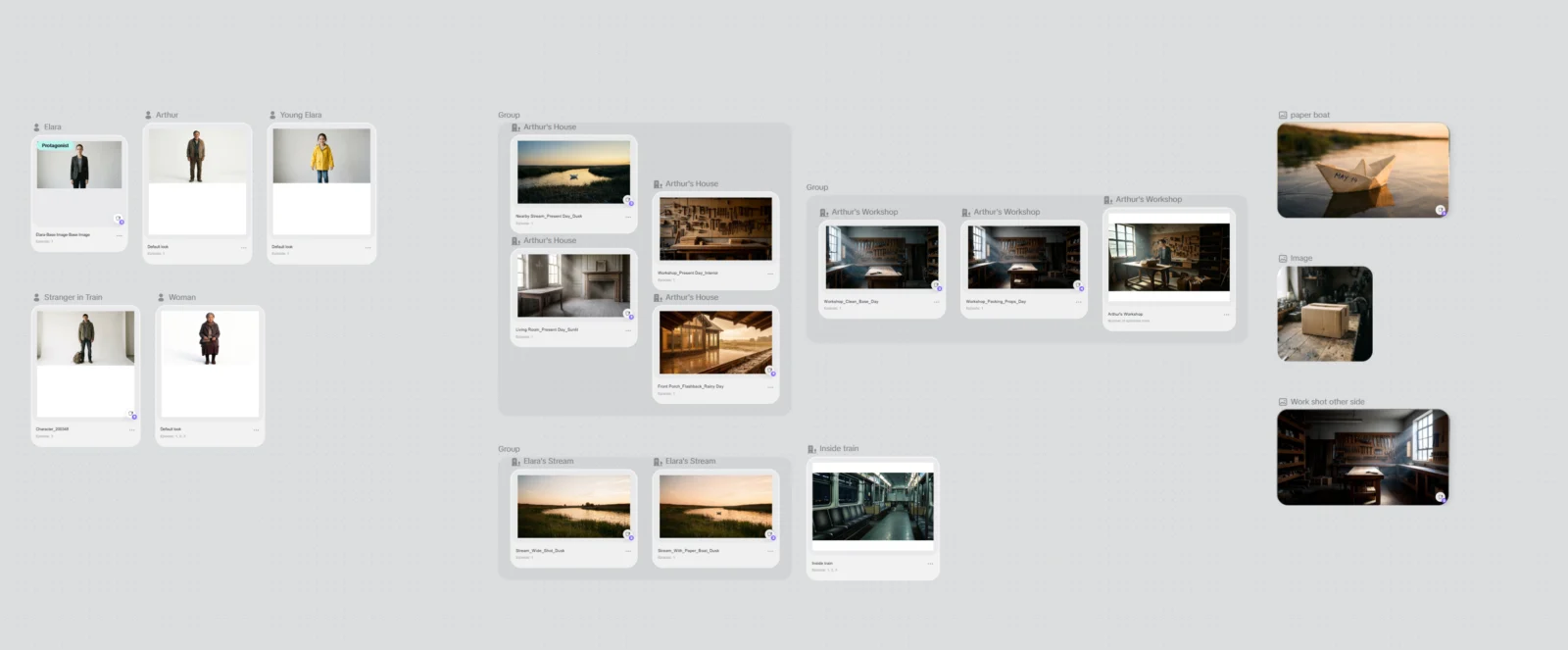
The Canvas is the part of Pippit Story Studio that surprises people who’ve only ever prompted image and video tools one shot at a time. It’s less like typing a prompt and more like running a writers room, your whole cast, every location, every prop, laid out as a connected map before Pippit renders a single clip.
Four tabs live in Pippit’s Canvas: Character, Location, Media, Prop. Every character you lock, every background you generate, every story-critical object gets its own card here.
Rules for working in Pippit’s Canvas
- This is a planning tool before it’s a generation tool. Lay out your whole production in Pippit’s Canvas before you touch the Episodes stage.
- Every card is reusable. A character or location locked once here gets pulled into every Pippit scene that needs it, by reference.
Lesson 9: Organizing a Real Production in the Pippit Canvas

A Pippit Canvas left unmanaged turns into clutter fast. On the real build, one Canvas view showed a stray leftover character card from a completely different test, a duplicate avatar card under two different names, an "Unnamed role" that never got renamed, and two separate location groups holding near-identical content.
Group by location, not by episode
The clean pattern inside Pippit’s Canvas is a Group per physical location, holding every variant of that location together. "Arthur’s House" as one group containing the Living Room card, the Front Porch flashback card, and the nearby stream card. "Arthur’s Workshop" as its own group holding the clean and packing-day variants.
The Pippit Canvas toolbar you’ll actually use
Along the bottom of Pippit’s Canvas sits undo, an organize or align tool, a grid layout view, a connector tool for drawing relationships between cards, a location pin tool, and zoom controls. The organize and connector tools are worth learning early.
Rules for keeping a Pippit Canvas clean
- Rename every "Unnamed role" the moment it appears.
- Delete or move test assets out of a production Canvas.
- Watch for duplicate groups holding the same content twice.
Lesson 10: Locking a Character Across Ages in Pippit
The hardest consistency problem in Pippit isn’t holding one character steady across scenes, it’s holding one character steady across two different ages in the same story.
The real Pippit prompt pair

Adult, locked first in Pippit:
Elara, a woman in her late twenties, the protagonist. A successful
big-city designer carrying quiet grief and guilt. Fine delicate features,
tired eyes that hold a closed-off sadness, a calm guarded expression that
rarely opens. Dark hair pulled back neatly and simply. Pale, natural skin
with real texture, no heavy makeup. Wearing sharp, minimal city clothing
in grey and charcoal tones. Slim, composed posture, reserved body
language. Realistic, soft natural lighting, plain neutral background,
photorealistic, full body, grounded and believable, emotionally
restrained, not glamorous, not glossy.

Young, built off the adult inside Pippit’s Canvas:
Young Elara, a cheerful seven-year-old girl, the child version of the
protagonist Elara. Same face structure and features as the adult Elara,
fine delicate features, the same dark hair, but as a bright happy young
child with curious lively eyes and a wide delighted smile. Dark hair in a
simple childlike style, a little messy. Wearing a simple yellow raincoat
over everyday children's clothes. Joyful, full of energy, mid-movement.
That one phrase, "same face structure and features as the adult Elara," is what makes Pippit render the child as the same person grown down.
Rules for locking an age pair in Pippit
- Always generate the adult first.
- Name the inherited features explicitly.
Lesson 11: Building a Complete Cast in Pippit Without Over-Building
On the real build, the first pass through Pippit’s Production assets generated two characters. The script needed three. The child was missing entirely, caught by checking the script’s cast list against the Pippit Canvas before moving forward.
The story also needed the father at a younger age for the flashback. Rather than building a second Pippit character, the better move was keeping the single adult character and framing him in soft focus in the flashback shot. One character built in Pippit, one shortcut used correctly.
Rules for right-sizing your cast in Pippit
- Check your script’s cast list against your Pippit Canvas before moving to production.
- Ask whether a character needs a second age at all.
Next page: writing the actual Pippit prompts that keep your characters, locations, and objects consistent once rendering starts.
Section 03
Consistent Characters, Scenes, and Props in Pippit
Lesson 12: Writing a Pippit Character Prompt That Locks

A character prompt in Pippit has one job beyond describing someone: it has to produce the same person again and again, scene after scene, without drifting.
The block that does the real work
SKIN: natural realistic complexion with fine pores and real texture,
clear and healthy but not retouched into plastic, soft natural tone, no
heavy makeup, no airbrushing, reads as a real human face.
Pair it with a plain, neutral background, the same one across your whole Pippit cast:
Soft natural daylight, gentle and even, plain neutral light-grey studio
background for a clean character reference. Photorealistic, grounded,
emotionally restrained, believable real person, full body, sharp focus,
fine film grain. Not glamorous, not glossy, not a fashion model, no
stylization.
Rules for a Pippit character prompt that holds
- Never ask for flawless skin alone. Pair it with real texture language every time.
- Use the same neutral background for your whole cast.
Lesson 13: Generating Consistent Pippit Locations You’ll Reuse All Episode

A location isn’t one image inside Pippit, it’s a set of states. Decide upfront which states a location needs before generating any of them in Pippit’s Canvas.
A real Pippit location prompt
Daytime. Faint, cold sunlight cuts through the grimy window on the left,
casting long beams through the thick dust of the silent room. The camera
holds a standard eye-level wide shot, emphasizing the horizontal spread
of the workshop. The expansive pegboard on the back wall remains
untouched, its tools hanging in rigid perfection. On the heavy wooden
workbench in the center foreground, a single wooden mallet rests on the
bare wooden surface from the very start, the only object on the bench,
the rest of the surface clear, scuffed and dusty. Down on the wooden
floor toward the right side, several closed cardboard boxes are lined up
horizontally, all with their lids shut.
Naming exactly what’s present, and stating that nothing else is, stops Pippit from inventing extra objects when it renders.
Rules for generating locations in Pippit
- Decide your states before you generate.
- Name every surface explicitly.
Lesson 14: Locking a Story-Critical Object in Pippit
The first version of the hero object came back beautiful from Pippit: a worn paper boat on golden water with a legible handwritten date, "OCT 26, ’23." The date was the problem, over two years old, undercutting the whole story.
The fix, back in Pippit
On the side of the hull, a short handwritten date in dark blue ink reads
"MAY 14".
No year. A recent-reading date without a year avoids both problems at once.
Rules for a hero object in Pippit
- Check every detail against your story’s actual timeline.
- Lock the object’s exact description once it’s right, then reuse it verbatim.
Lesson 15: The Text-On-Screen Problem
Seedance 2.0 Mini, like every video model, cannot render legible handwriting in motion. Generate the legible version as a still image in Nano Banana Pro, separately, and cut to that still in your edit at the exact moment the audience needs to read it.
Rules for anything with readable text in Pippit
- Never ask Seedance 2.0 Mini to render legible text.
- Generate the readable version as a still, every time.
Next page: turning your locked Pippit cast, locations, and objects into an actual finished, rendered episode.
Section 04
From Script to Finished Episode
Rendered Inside Pippit
Lesson 16: Generating Your Pippit Shooting Script
Once your script and your cast are locked, Pippit Story Studio breaks your written scenes into a shooting script, the actual per-shot prompts that render with Seedance 2.0 Mini. Your three script scenes typically become closer to eight or nine individual Pippit clips.
Rules for this Pippit stage
- Expect more clips than scenes.
- Read every generated shot before rendering any of them.
Lesson 17: Editing Pippit Prompts Before You Render, the Tag System
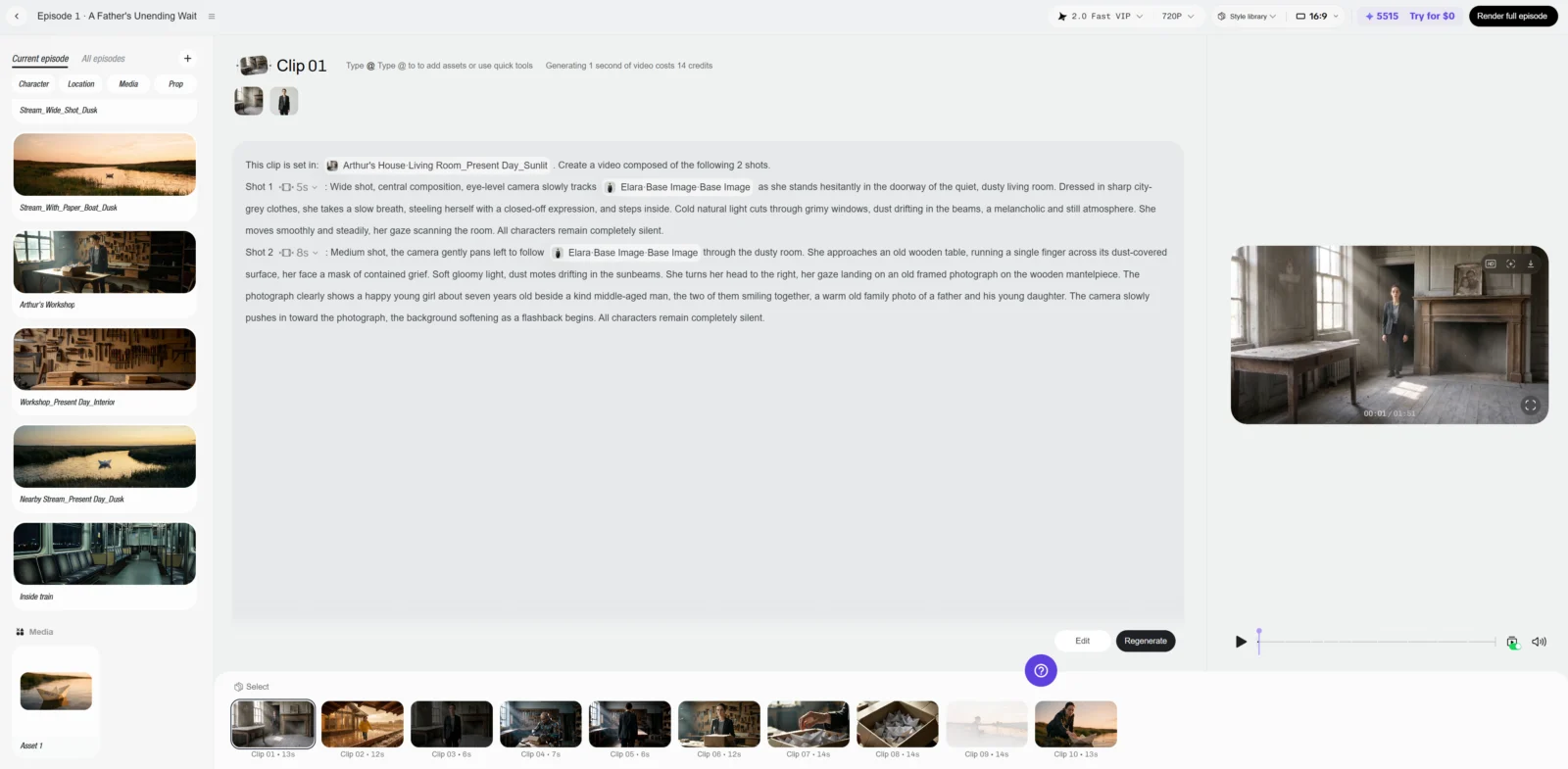
The single most powerful control point in Pippit is that you can edit a scene’s shooting prompt before it renders. Pippit’s shooting prompts use a structured tag system: <location> for a locked location, <role> for a locked character, <duration-ms> for exact shot length.
This clip is set in: <location>L1</location>. Create a video composed of
the following 2 shots.
Shot 1<duration-ms>5000</duration-ms>: Wide shot, central composition,
eye-level camera slowly tracks <role>R1</role> as she stands hesitantly
in the doorway of the quiet, dusty living room. Dressed in sharp
city-grey clothes, she takes a slow breath, steeling herself with a
closed-off expression, and steps inside.
The Pippit model check that gets missed
Before rendering, confirm Pippit’s model selector actually shows Seedance 2.0 Mini, not a different variant sitting in the same dropdown.
Rules for editing Pippit shooting prompts
- Always check for editable prompts before accepting Pippit’s default.
- Verify your model selection before every render.
Lesson 18: Fixing Continuity Glitches in Pippit
Two glitches show up often enough in Pippit to name specifically. Both share the same fix: state exactly what should and shouldn’t be in frame, from the very first moment of the shot.
The wrong-face problem
Her gaze landing on an old framed photograph on the wooden mantelpiece.
The photograph clearly shows a happy young girl about seven years old
beside a kind middle-aged man, the two of them smiling together, a warm
old family photo of a father and his young daughter.
The phantom-object problem
The heavy wooden workbench in the center foreground is clear and empty,
its bare wooden surface scuffed and dusty, nothing resting on it... The
workbench surface stays consistent throughout, no objects appear or
vanish.
Rules for fixing continuity in Pippit
- Never leave the contents of a frame-within-a-frame undescribed.
- State a surface’s contents explicitly, then state that nothing changes.
Lesson 19: Directing Your Hardest Shot in Seedance 2.0 Mini
Every emotional story has one shot harder than the rest, the moment someone goes still. Write that literally into Pippit, and you get a frozen render.
Her hands slow and still as she holds the boat. A single tear traces a
path through the dust on her cheek, then another. Her eyes well and
brim, she blinks slowly, the smallest tremor crossing her face, her
breath catching, her chest rising faintly. She stays quiet, holding the
boat, alive with held emotion, never frozen.
DO NOT: frozen face, statue stillness, held still frame, waxy plastic
skin.
Rules for a stillness beat in Pippit
- Never ask Seedance 2.0 Mini for literal stillness. Ask for the smallest motion instead.
- Build silence in the edit, not in the generation.
Lesson 20: Rendering the Complete Episode in Pippit, One Place, Start to Finish
Once every clip in your Pippit shooting script is generated and approved, the full episode renders and assembles inside Pippit Story Studio itself. No third-party editor is required to get from a folder of individual clips to one finished, playable episode.
Pippit combines your approved clips in sequence, carries the last frame of one clip forward into the next for a smooth handoff, and applies a final quality pass across the assembled episode, all in the same workspace you’ve been in since Lesson 1.
Rules for this Pippit stage
- Render inside Pippit Story Studio as the default path.
- Review the assembled sequence as a whole before calling it done.
You now have the complete Pippit pipeline. One paragraph in, a finished, consistent episode out.
Section 05
Pippit Story Studio Cheat Sheet
What’s Next
The single strongest rule from every lesson, in one place, for when you’re mid-build inside Pippit and need a fast answer.
Idea, outline, script
- Name your beat order and rule out what you don’t want, explicitly, in every Pippit brief.
- Read Pippit’s Key Hook and Growth Arc before you generate the full script. Drift shows up here first.
- State the aftermath, never the event. That’s the implied-emotion ceiling for any Pippit story.
- Build one episode completely before touching a second, even when Pippit proposes five.
Style, cast, and the Pippit Canvas
- Lock your style in Pippit before you build a single character. Every character inherits it.
- Rename every "Unnamed role" in Pippit’s Canvas the moment it appears.
- To lock a character across ages, name the inherited features explicitly: same face structure, same hair.
- Check your script’s cast list against your Pippit Canvas before moving to production.
Consistent characters, scenes, and props
- Pair "flawless skin" with "real texture, not plastic" in every Pippit character prompt. Never ask for one alone.
- Name every surface explicitly in a Pippit location prompt, and state that nothing changes.
- Check every hero object’s details against your story’s actual timeline before you lock it.
- Never ask Seedance 2.0 Mini to render legible text. Generate it as a Nano Banana Pro still instead.
Script to finished episode
- Always check whether Pippit’s shooting prompt is editable before accepting the default.
- Confirm the model selector actually shows Seedance 2.0 Mini before every render.
- State a surface’s contents explicitly, then state that nothing changes, to stop phantom objects.
- Never ask Seedance 2.0 Mini for literal stillness. Ask for the smallest motion instead, and build real silence in your edit.
- Render inside Pippit Story Studio as the default path. No third-party editor required.